Client Offboarding
Follow these steps when ending a business relationship with a client.
When a client has elected to no longer pay for our services we need to:
- Take a static backup of the website
- Upload that to google drive in the backups folder
- Turn off UptimeRobot tracking
Backup the website
- Log in to Cloudways.
- Search for the client application.
- Identify the server being used.
- Access the server.
- Select Backup from the left navigation menu.
- Scroll to see if the Local Backup is enabled (toggled to On).
- If not, toggle to On and click Take Backup Now.
Disable Site On Cloudways
- Add 'Disabled' to beginning of site name to indicate it’s disabled.
- Make sure we disable server space access in Cloudways - under applications or something.
Cloudflare automatically removes entries upon deactivation — no manual intervention required.
Pull Backup File
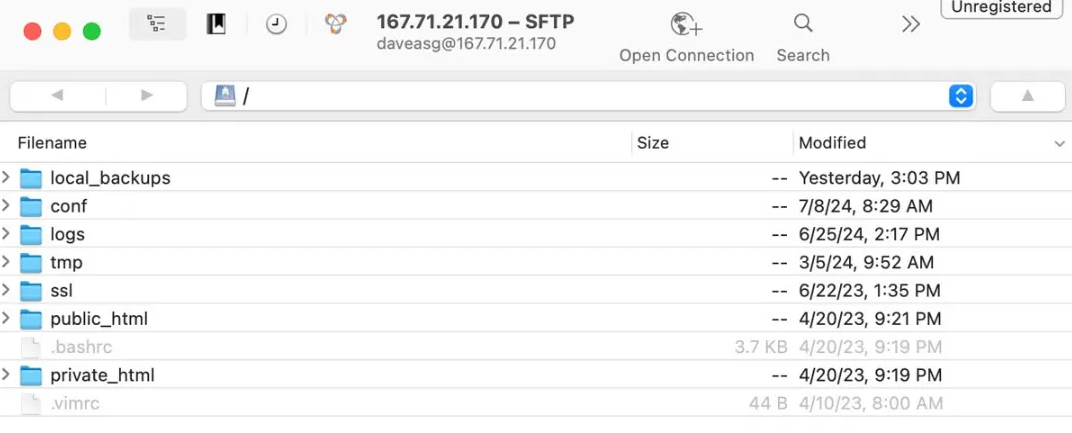
- Log in to the site via your preferred FTP client.
- Locate the local_backups folder.
- Download the most recent backup file.
Upload Backup to Google Drive
- Log in to Google Drive with your Turtlehut email credentials.
- Locate the Client folder.
- Upload backup files to the Data > Backups directory.
UptimeRobot
- Log in to UptimeRobot.
- Locate the client monitor.
- Click the settings icon.
- Select Delete.
- Click Save.

- Click Save.
Last Updated: 9/18/25